From Bytes to the Cloud: How Node.js Reads, Validates and Uploads Files

Introduction
Almost every real application works with files. A user uploads a profile picture, an app saves a PDF, a server reads a config file, a report is written to the disk.
But what is a file for a backend? How does Node.js read it? How do we know that an uploaded file is really an image? And where should we keep it after the upload?
In this blog, we will follow the journey of a file step by step: the fs module, Buffer, Multer, file validation, and cloud storage.
What is a File?
For a computer, every file is just a long list of bytes. A text file, a photo, a PDF and a video are all bytes. The only difference is how those bytes are arranged.
That`s why Node.js needs a way to hold raw bytes in memory. That tool is called a Buffer.We will discuss about buffer but first, let`s see how Node.js reads and writes files.
The fs Module
fs stands for file system. It is built into Node.js, so we do not need to install anything.
import fs from 'node:fs';
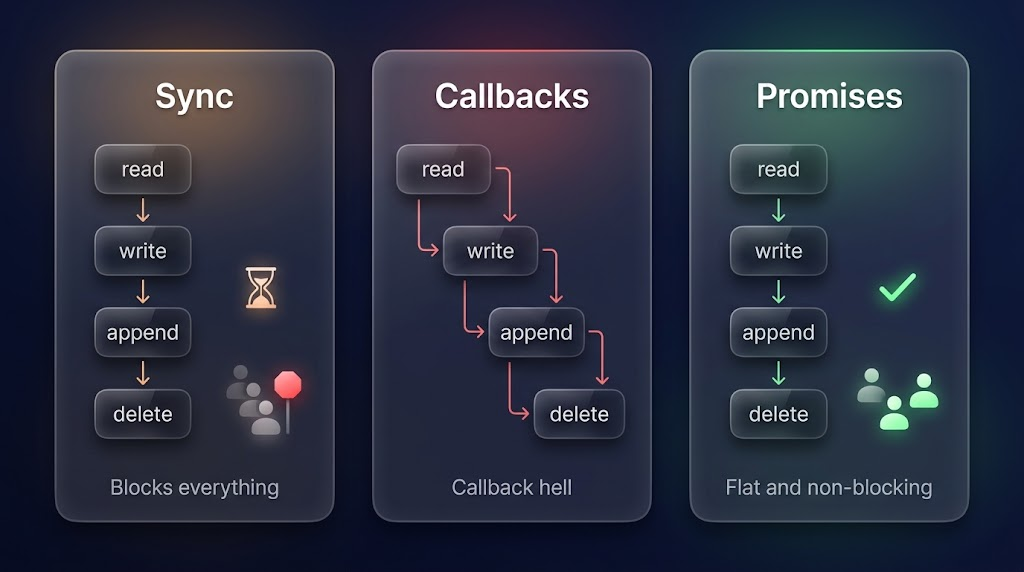
It can create, read, update, rename, copy and delete files and folders. Every operation comes in three styles: synchronous, callback and promise.
| Action | Sync | Promise |
|---|---|---|
| Write a file | writeFileSync |
writeFile |
| Read a file | readFileSync |
readFile |
| Add to a file | appendFileSync |
appendFile |
| Create a folder | mkdirSync |
mkdir |
| Rename | renameSync |
rename |
| Copy | cpSync |
cp |
| Delete a file | unlinkSync |
unlink |
| Delete a file or a folder | rmSync |
rm |
1. Synchronous
import fs from 'node:fs';

fs.writeFileSync('test.txt', 'Hello');

const data = fs.readFileSync('test.txt', 'utf-8');
console.log(data); // Hello

fs.mkdirSync('myFolder/innerFolder', { recursive: true }); // creates the parent folders too
fs.rmSync('myFolder', { recursive: true, force: true });   // deletes a folder with everything inside
Synchronous functions block the program. Node.js waits until the work is finished, and nothing else can run in that time. This is fine for small scripts and for work at the start of a program. But on a server, one slow file read can freeze the requests of all other users.
2. Callbacks
The asynchronous version does not block. We give it a function, and Node.js calls it when the work is finished.
import fs from 'node:fs';

fs.readFile('b.txt', 'utf-8', (err, data) => {
  if (err) return console.log(err);

  fs.writeFile('c.txt', data, (err) => {
    if (err) return console.log(err);

    fs.appendFile('c.txt', '\nDone', (err) => {
      if (err) return console.log(err);

      fs.unlink('b.txt', (err) => {
        if (err) return console.log(err);
        console.log('b.txt deleted');
      });
    });
  });
});
This works, but look at the shape of the code. Every next step goes one level deeper, and error handling is repeated at every level. This pyramid is known as callback hell.
3. Promises
The same work with node:fs/promises and async/await:
import fs from 'node:fs/promises';

try {
  const data = await fs.readFile('b.txt', 'utf-8');
  await fs.writeFile('c.txt', data);
  await fs.appendFile('c.txt', '\nDone');
  await fs.unlink('b.txt');
  console.log('b.txt deleted');
} catch (err) {
  console.log('Something went wrong:', err.message);
}
The code is flat, it reads from top to bottom, and one try/catch handles all errors. It is also non-blocking. This is the style we use in modern projects. (Top-level await works in ES modules, so set "type": "module" in your package.json.)
Which one to use? Use the promise style inside servers and request handlers. Use the sync style only in small scripts or at startup, never while handling requests.
Buffer
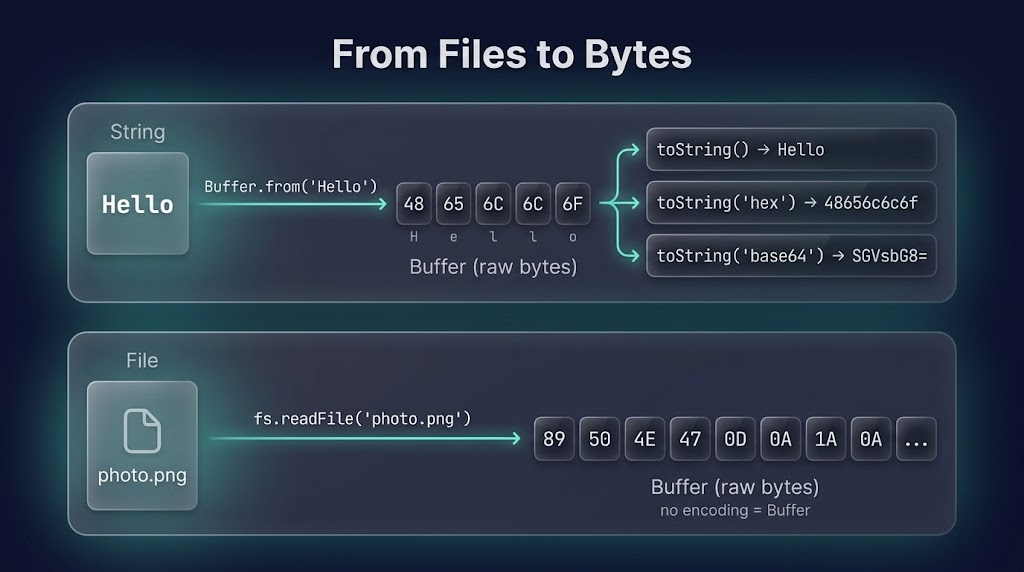
A Buffer is a fixed-size block of memory that holds raw bytes. In Node.js, it is a special kind of Uint8Array, and it is stored outside the normal JavaScript heap.
Why do we need it? Strings are for text. But files, network data and streams are made of bytes, and many of them are not text at all (like a photo). A Buffer is the way to hold and work with them.
const buf = Buffer.from('Hi');

console.log(buf);            // <Buffer 48 69>
console.log(buf.toString()); // Hi
48 and 69 are the bytes for the letters H and i, written in hexadecimal.
We can also decide how bytes are shown as text. This is called an encoding:
const text = Buffer.from('Hello');

console.log(text.toString('hex'));    // 48656c6c6f
console.log(text.toString('base64')); // SGVsbG8=
Reading a File Gives a Buffer
If we do not give an encoding, readFile returns a Buffer:
import fs from 'node:fs/promises';

const data = await fs.readFile('photo.png'); // no encoding

console.log(data);        // <Buffer 89 50 4e 47 ...>
console.log(data.length); // size of the file in bytes
If we give 'utf-8', Node.js converts the bytes to a string. That is right for text files, but wrong for images.
Buffers and Memory
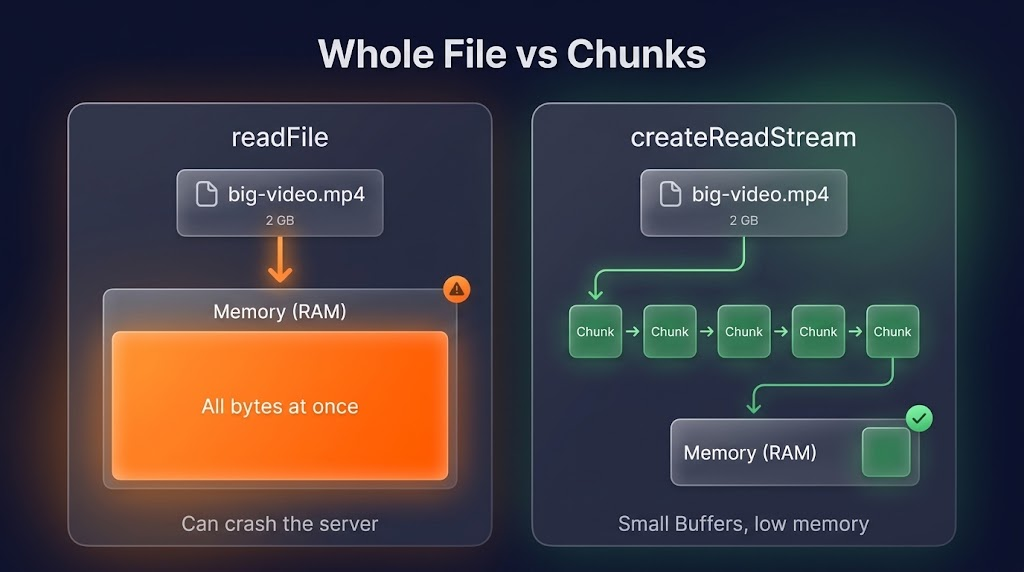
When we read a whole file with readFile, all of its bytes go into memory at once. For a small file, it is fine. For a file of 2 GB, it is a problem.
The solution is a stream. A stream reads the file in small pieces (chunks). Every chunk is a Buffer, and we can process it and move on:
import fs from 'node:fs';

const stream = fs.createReadStream('big-video.mp4');

stream.on('data', (chunk) => {
  console.log('Got a chunk of', chunk.length, 'bytes');
});
Streams are used when a file is uploaded to cloud storage, so the whole file never sits in memory.
Magic Bytes: What a File Really Is
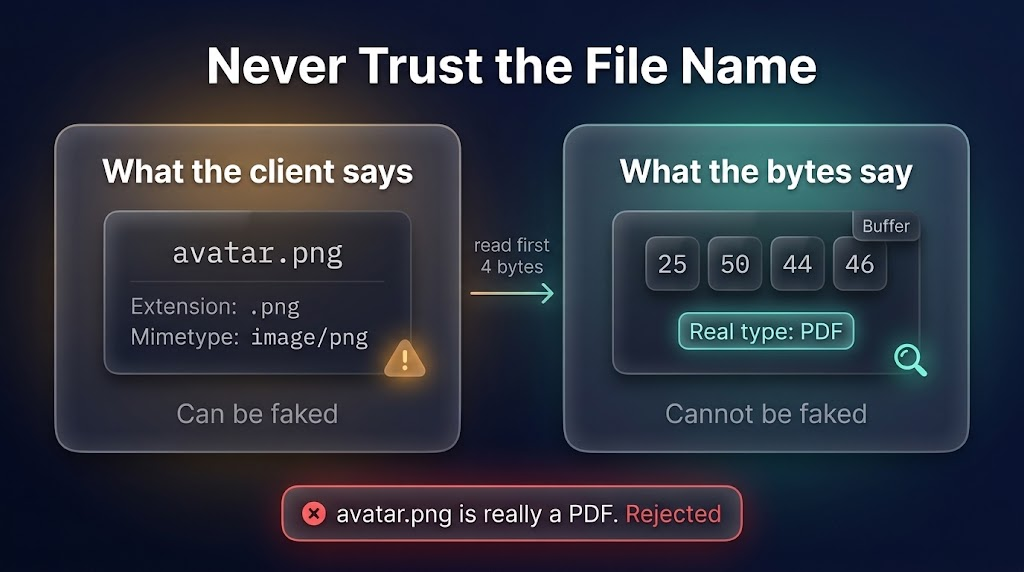
A user uploads avatar.png. Is it really a PNG image? The file name can be changed by anyone. The mimetype is also sent by the client, so it can be faked.
The real answer is inside the file. Most file types start with a few special bytes called a file signature or magic bytes.
| Type | First bytes (hex) |
|---|---|
| PNG | 89 50 4E 47 |
| JPEG | FF D8 FF |
| GIF | 47 49 46 38 |
25 50 44 46 |
Now we use a Buffer to read just the first bytes of a file and compare them:
import { open } from 'node:fs/promises';

async function startsWith(filePath, signature) {
  const file = await open(filePath, 'r');

  try {
    const buffer = Buffer.alloc(signature.length);
    await file.read(buffer, 0, signature.length, 0); // read from position 0

    return signature.every((byte, i) => buffer[i] === byte);
  } finally {
    await file.close();
  }
}

const isPng = await startsWith('avatar.png', [0x89, 0x50, 0x4e, 0x47]);
console.log(isPng); // true only if the content is really a PNG
We read only a few bytes, not the whole file. Note that some formats need more bytes to be sure. For example, a WebP file starts with RIFF, but other formats start the same way, so its name WEBP at bytes 8 to 11 must be checked too.
Multer
When a user uploads a file from a form or an app, the browser sends it in a special format called multipart/form-data. Express cannot read this by default: express.json() and express.urlencoded() do not understand files.
Multer is a middleware that reads multipart/form-data, saves the file, and gives us the file's details in req.file.
npm install multer
Disk Storage vs Memory Storage
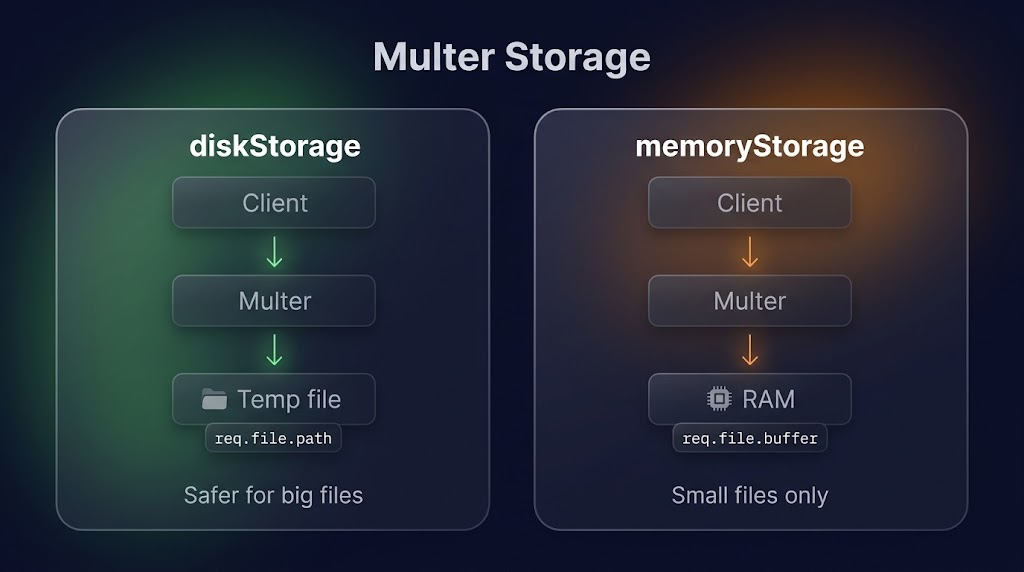
Multer can keep the uploaded file in two places:
diskStorage: Multer saves the file on the disk in a temporary folder. We get its location inreq.file.path.memoryStorage: Multer keeps the file in RAM. We get it as a Buffer inreq.file.buffer.
Memory storage is quick, but all uploads sit in RAM, so it is only good for small files. For bigger files, disk storage is safer.
Configuring Multer
import multer from 'multer';
import path from 'node:path';

const storage = multer.diskStorage({
  destination: (req, file, cb) => cb(null, 'public/uploads'),
  filename: (req, file, cb) => {
    const unique = Date.now() + '-' + Math.round(Math.random() * 1e9);
    cb(null, file.fieldname + '-' + unique + path.extname(file.originalname));
  },
});

const fileFilter = (req, file, cb) => {
  const allowed = ['image/png', 'image/jpeg', 'image/gif', 'image/webp'];

  if (allowed.includes(file.mimetype)) {
    cb(null, true);
  } else {
    cb(new Error('File type not supported'), false);
  }
};

export const upload = multer({
  storage,
  fileFilter,
  limits: { fileSize: 5 * 1024 * 1024 }, // 5 MB
});
Let's understand each part:
destination: the folder where the file is saved. When we write it as a function, the folder must already exist.filename: the name of the saved file. We add the time and a random number, so two users who uploadphoto.pngnever overwrite each other.path.extnamekeeps the original extension.fileFilter: decides whether a file is accepted or rejected.limits: stops files that are too large.
Now we use it in a route:
app.post('/upload', upload.single('avatar'), (req, res) => {
  // req.file has the details of the uploaded file
  res.status(201).json({ filename: req.file.filename, size: req.file.size });
});
upload.single('avatar') accepts one file, and 'avatar' must match the field name sent by the client. For many files, we use upload.array('photos', 5).
req.file has useful properties: originalname, filename, path, mimetype and size (in bytes).
Validate in Layers
No single check is enough. A safe upload uses all of these layers:
- File size limit (
limits): stops very large files. fileFilter: checks the declaredmimetype. It is quick, but the client sends it, so it can be faked.- Magic bytes: checks the real content of the file, as we did above.
The first two layers reject obvious problems early, and the third layer checks what the file really is.
Serving Files from the Server
Files saved in public/uploads can be served with Express's static middleware:
app.use('/uploads', express.static('public/uploads'));
Now a file saved as public/uploads/avatar-123.png is available at http://localhost:3000/uploads/avatar-123.png. We do not write any route for it.
This is fine while learning. In production, we usually do not keep files on the server's disk. Let's see why.
Cloud Storage: Cloudinary and ImageKit
Keeping uploads on the server's own disk has real problems:
- On many hosting platforms, the disk is temporary. Files disappear when the server restarts or is redeployed.
- If you run more than one server, each has its own disk, so a file uploaded to one is missing on the others.
- The disk can get full, and serving big files makes your server slower.
Services like Cloudinary and ImageKit solve this. They give us:
- Storage: your files are saved safely outside your server.
- CDN: files are delivered from a location close to the user, so they load fast.
- Transformations: resize, compress or convert an image just by changing the URL, without saving many versions.
The idea is the same in both. Our server sends the file to the service, either from the temporary file as a stream or from a Buffer in memory. The service saves it and sends back:
- a URL to show the file, and
- a unique ID (
public_idin Cloudinary,fileIdin ImageKit).
We must save both. The URL is for showing the file, and the ID is needed later to delete or replace it.
Saving File Details in the Database
The cloud keeps the file, and our database keeps the details about it. A good record has:
originalName: the name the user uploadedfilename: the saved nameurl: where to find itsize: in bytes, as a numbermimetypestorageType: local or cloudfileId: the ID from the cloud service
Cleaning Up Temporary Files
When Multer saves a file on the disk, that is only a temporary copy. After the file is uploaded to the cloud, we must delete it. And we must delete it even when something fails, otherwise the disk fills with unused files.
The finally block is perfect for this:
import { unlink } from 'node:fs/promises';

app.post('/upload-cloud', upload.single('avatar'), async (req, res, next) => {
  try {
    // check the magic bytes of req.file.path
    // upload the temporary file to the cloud storage
    // save the url and the ID in the database
    res.status(201).json({ message: 'File uploaded' });
  } catch (error) {
    next(error);
  } finally {
    await unlink(req.file.path).catch(() => {}); // always delete the temporary file
  }
});
The same rule is true for deleting. When a file record is deleted, we also delete the real file: from the disk with unlink, or from the cloud using its saved ID. Otherwise, the file stays in storage forever with nothing pointing to it.
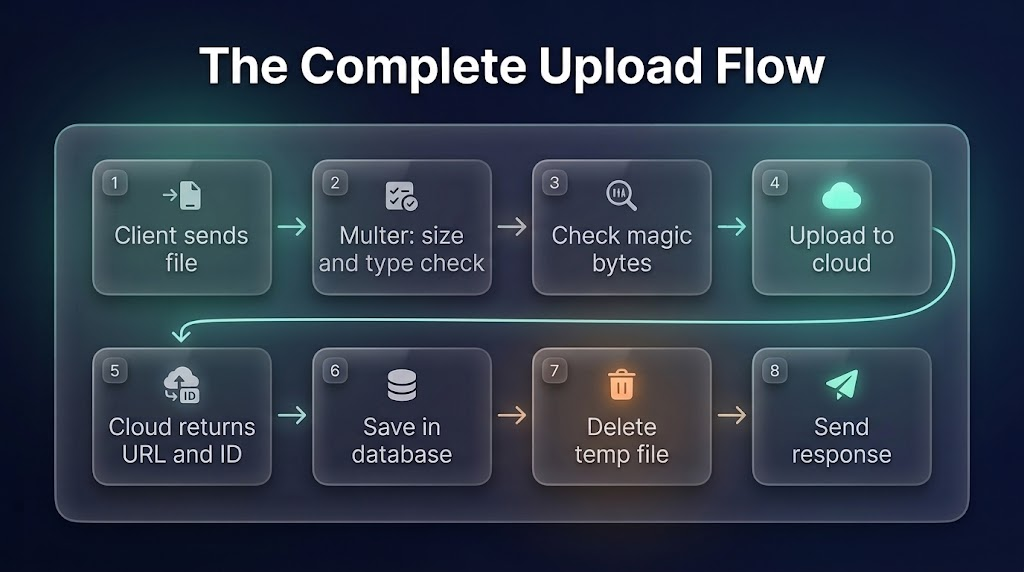
The Complete Flow
- The client sends the file in a
multipart/form-datarequest. - Multer checks the size and the type, and saves a temporary file.
- We check the magic bytes of the file.
- We upload the file to the cloud storage.
- The cloud storage returns the URL and the ID.
- We save the details in the database.
- We delete the temporary file.
- We send the response to the client.
Common Mistakes
- Using sync functions inside request handlers. They block the server for everyone.
- Trusting the file name or
mimetype. Both can be faked. Check the magic bytes too. - No file size limit. Anyone can upload a huge file.
- Reading big files with
readFile. Use streams for large files. - Forgetting to delete temporary files. Use
finallyso cleanup always happens. - Saving only the URL. Save the cloud ID too, or you cannot delete the file later.
- Keeping uploads on the server's disk in production. Use cloud storage.
The complete project of this blog is on GitHub: chai-aur-filesystem
You can find more of my work at abdulrdeveloper.me
Read more posts at blog.abdulrdeveloper.me
About the author
- CS student and full-stack developer from Pakistan. Building with JavaScript, TypeScript, React, Next.js and Node.js. Currently in ChaiCode Web Dev Cohort 2026.
Comments
Join the discussionNo comments yet. Be the first to comment.